


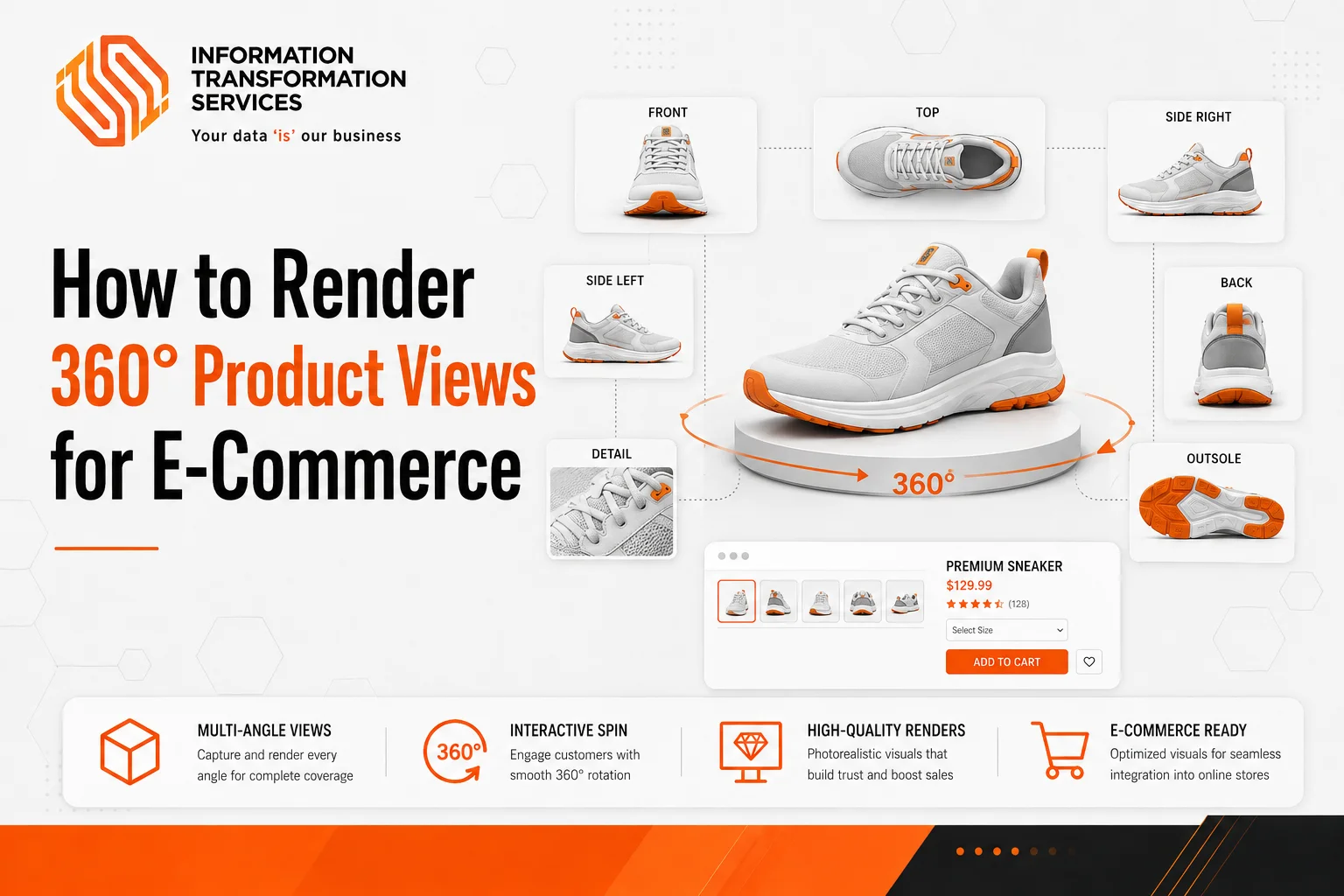
How to Render 360° Product Views for E-Commerce
Poor product visuals can make online shoppers hesitate, especially when they cannot see the product’s shape, texture, finish, or side details clearly. For e-commerce brands, 3D artists, and product marketers, a 360° product view for e-commerce helps buyers inspect the product from every angle before they decide.
This tutorial explains how to render 360° product views in a practical way, from creating a realistic product spin to preparing it for an online store. It focuses on clean visuals, smooth rotation, fast loading, and a better shopping experience without making the process complicated.
For most e-commerce products, use a 360° image sequence with 24–36 consistently rendered frames because it offers reliable image quality, faster loading, and easy integration; choose an interactive 3D viewer only when shoppers need free rotation, zoom, customization, or AR. In practice, the image-sequence format is the better starting point for Shopify, WooCommerce, and custom stores, while optimized GLB/USDZ models are better suited to products where deeper interaction adds real buying value.
Tools You Need to Render 360° Product Views
You need three core tools to create a 360° product view: 3D rendering software, a clean product model or CAD file, and a lightweight 360° viewer. Use Blender, 3ds Max, KeyShot, or Cinema 4D to render consistent product frames; start with a clean, accurately scaled model to avoid rotation, shading, and reflection issues; then use a 360° viewer such as a WooCommerce image-sequence tool or <model-viewer> for interactive 3D and AR. For most e-commerce projects, Blender + a clean product model + an optimized viewer provides a practical workflow that balances visual quality, performance, and ease of implementation.
Step 1: Prepare Your Product Model
Before you render, open the product model and rotate it from all sides. Check the front, back, side, top, and bottom views. Remove any extra objects, hidden parts, duplicate pieces, or unwanted background elements from the scene. Then check the product edges, holes, curves, and small details because a 360° render will show every mistake during rotation.
Set the product pivot point in the center so it spins smoothly like a real turntable. Apply the correct scale, keep the product straight, and place it on the center of the scene grid. If the model has broken surfaces, sharp unwanted edges, missing parts, or floating pieces, fix them before moving to materials. This step makes the final 360° product view cleaner, smoother, and easier to use on an e-commerce page.
Step 2: Apply Materials and Textures
Materials decide how the product looks under light, so do not apply random colors or glossy effects. Match the material with the real product first. Check whether the item is plastic, metal, glass, leather, fabric, wood, rubber, or painted surface, then adjust the color, shine, roughness, and small texture details.
Use base color for the real product color. Use roughness to control how matte or glossy the surface looks. Use metallic only for real metal parts. Add normal or bump maps when the product has small details like fabric weave, leather grain, brushed metal lines, plastic texture, grooves, or embossed branding.
Keep the material realistic from every angle because a 360° render will expose weak textures during rotation. If the surface looks too shiny, too flat, or too clean, shoppers may not trust the product view. Test the material with light before rendering the full image sequence, and compare it with real product photos if available.
Step 3: Set Up Lighting for an E-Commerce Look
Lighting should make the product clear from every angle. Do not create a cinematic or dramatic setup here. For a 360° product view, use clean studio lighting because the product will rotate and every shadow, reflection, and dark spot will appear in the final spin.
Start with one large soft light above the product and slightly in front of it. Keep it at a 45-degree angle so the product shape looks clear without harsh shadows. If the opposite side looks too dark, add a weaker fill light on that side. Keep this fill light softer than the main light so the product still has natural depth.
Place a small back light behind the product only if the edges blend into the background. This helps separate the product from the white, gray, or transparent background. For glossy products like metal, glass, plastic, or jewelry, reduce strong highlights because bright reflections can hide product details.
Before rendering the full 360° sequence, render only four test angles: front, right side, back, and left side. Check each angle carefully. If one side looks dark, increase the fill light. If the product looks too shiny, reduce reflection or increase material roughness. If the shape looks flat, move the main light slightly higher or to the side.
Use the same lights for the full rotation. Do not move the camera or lighting during the spin. Only the product should rotate. This keeps every frame consistent and makes the final 360° product view look smooth on the e-commerce page.
Step 4: Create a 360° Turntable Animation
Create the 360° animation like a real product turntable. Keep the camera, lights, and background fixed. Rotate only the product around its center point. This keeps the product size, angle, and lighting consistent in every frame.
First, place the product in the center of the scene. Set its pivot point in the middle, not on the side or corner. If the pivot is wrong, the product will wobble during rotation. Then set the first frame at 0° rotation and add a keyframe. Go to the last frame, rotate the product 360° on the vertical axis, and add another keyframe. Blender uses keyframes to store object changes like rotation, and KeyShot also supports geometry keyframe animation through its animation timeline.
Use linear movement so the product rotates at the same speed from start to end. Do not use slow-in or slow-out animation because it can make the final product spin feel uneven. For most e-commerce spins, use 36 frames as a balanced option because it gives smooth rotation without making the page too heavy. Sirv also recommends 36 images for a smooth spin with acceptable loading speed.
Step 5: Choose the Right Number of Frames
Frame count controls how smooth your 360° product view feels and how fast the product page loads. Do not choose frames randomly. Match the number of frames with your product detail and website speed. For a simple product, 24 frames can work because it keeps the file size light. For most e-commerce stores, 36 frames is the best starting point because it gives a smooth spin without making the page too heavy.
Use a simple formula before rendering: 360 ÷ total frames. If you use 24 frames, rotate the product by 15° for each frame. If you use 36 frames, rotate it by 10°. If you use 72 frames, rotate it by 5°. This keeps every angle equal and makes the final spin look smooth.
Only use 72 frames when the product has premium details, such as jewelry, shoes, furniture, electronics, or luxury items. More frames create a better viewing experience, but they also take more time to render, optimize, and upload. For a normal product page, start with 36 frames, test the spin on mobile, and make sure the product stays centered from the first frame to the last.
Step 6: Render the 360° Image Sequence
Render your 360° product view as separate image frames, not as a video. Most e-commerce 360° viewers work better with an ordered image sequence because they can load each angle and let shoppers drag or swipe the product smoothly. Before rendering, create a separate folder for all frames and name it clearly, such as product-name-360-frames. Choose your frame count based on the quality you need: use 24 frames for a basic spin, 36 frames for a smooth e-commerce view, and 72 frames for premium product detail.
Keep every frame in the correct order, such as product-001.png, product-002.png, and product-003.png. Use PNG if you need high quality or a transparent background. Use JPEG if the background is white or gray and you want smaller file sizes. Render a few test angles first, such as the front, side, and back. Check the product position, shadows, reflections, color, and edges before starting the full render. Once all frames are complete, review the folder and remove any blank, broken, duplicate, or wrong frame. A clean image sequence helps the 360° viewer run smoothly and prevents jumps during rotation.
Step 7: Optimize Images for Fast Loading
After rendering the 360° frames, optimize them before uploading them to your store. A product spin uses many images, so large files can slow down the product page, especially on mobile. Resize every frame to the exact size your 360° viewer needs, then compress the images without making the product blurry. Keep all frames the same width, height, crop, and background so the spin looks smooth.
Use WebP when your viewer supports it because it keeps good quality with smaller file sizes. Use PNG for transparent backgrounds and JPEG for white or light gray backgrounds. After compression, check important details like logos, labels, edges, texture, and product color. Then test the final 360° view on desktop and mobile. The product should rotate smoothly, load quickly, and stay clear enough for shoppers to inspect before buying.
Step 8: Add the 360° Product View to Your E-Commerce Store
After you optimize the frames, upload them to your e-commerce store through a 360° product viewer. Keep the image order correct because the viewer reads the frames one by one to create a smooth spin. For WooCommerce, you can use a 360° image tool that turns a group of product gallery images into a controllable rotation. For Shopify, first check whether your theme supports the product media type you want to use, because Shopify supports images, videos, and 3D models on product pages.
Add the first frame as the main preview image so shoppers understand that the product can rotate. Then enable simple controls such as drag, swipe, and zoom. Test the product page on desktop and mobile before publishing. If the spin jumps, check the file order. If the page loads slowly, compress the frames again or reduce the image size. If you use an interactive 3D model instead of image frames, tools like <model-viewer> can display 3D models on the web and support AR where available
Why 360° Product Renders Improve E-Commerce Experience
360° product renders improve the shopping experience because they reduce doubt. Online buyers cannot touch the product, turn it in their hands, or check the back, sides, edges, texture, and finish like they can in a physical store. A 360° view gives them more visual control, so they can inspect the product before making a decision.
This matters most for products where shape, material, size, and small details affect the purchase. For example, jewelry, shoes, furniture, electronics, bags, tools, packaging, and home decor need more than one flat image. A clear 360° product render helps shoppers understand what they are buying and reduces confusion on the product page.
Interactive product visuals can also support buyer confidence. BigCommerce shared survey data showing that 66% of shoppers said 3D configurators increased their purchase confidence, and 60% were more likely to buy when products were shown in 3D or AR. Shopify also reported that shoppers who interacted with a 3D model were 44% more likely to add a product to cart and 27% more likely to place an order than those who did not.
For e-commerce stores, the real value is simple: a 360° product render makes the product page more useful. It helps buyers see the item clearly, compare details faster, and feel more confident before checkout. When the render loads quickly and looks realistic, it can improve trust without making the shopping experience complicated.
Common Mistakes to Avoid When Rendering 360° Product Views
Avoid common 360° product spin mistakes that affect quality, speed, and user experience. Use 24 frames for a basic spin, 36 for e-commerce, and 72 only for detailed products. Do not render both 0° and 360°, as this repeats the same view and can cause a pause.
Keep the camera fixed, rotate the product from its center pivot, and maintain identical lighting across all frames. Compress images before uploading and use WebP for smaller files, PNG for transparency, or JPEG for simple backgrounds. Test the spin on mobile, keep frame names in the correct order, and use a 3D viewer only when features such as zoom or AR justify the extra load.
Final Thoughts
Rendering a 360° product view for e-commerce is not only about making the product look attractive. It is about helping shoppers understand the item clearly before they buy. A clean 360° render shows the shape, material, texture, edges, and small details from every angle, which a single product image cannot always do.
Start with a clean product model, apply realistic materials, use soft studio lighting, and create a smooth turntable animation. Then render the frames in the right order, optimize the images, and test the final view on desktop and mobile. This workflow keeps the product page fast, clear, and useful for real buyers.
For most online stores, a 360° image sequence is the safest option because it gives good control over quality, speed, and display. Use interactive 3D only when the product needs deeper rotation, zoom, AR, or customization. The best result comes when the render looks realistic, loads quickly, and makes the buying decision easier for the customer.

