

How to Validate 3D Model Scale and Units Before Export
A 3D model can look perfectly correct inside Blender, 3ds Max, Maya, CAD software, or another modeling tool and still arrive at the wrong size after export. A chair may import at the scale of a building, a mechanical part may become tiny, or an AR product may appear several times larger than the real object. These errors usually come from unit mismatches, unapplied transforms, inconsistent scene scale, or assumptions made by the destination software.
Scale problems are more than an inconvenience. They can affect physics, animation, lighting, camera clipping, material scale, measurement, manufacturing, AR placement, and coordination with other assets. A reliable export workflow therefore needs explicit unit checks before the file leaves the source application.
Decide the Real-World Size Before Modeling Further
Every production model should have a real-world size reference. That may come from CAD dimensions, a product specification sheet, architectural drawings, scan measurements, or a known reference object.
Do not wait until export to ask how large the model is supposed to be. Establish the target dimensions early and keep them visible in the workflow. For commercial 3D product models, accurate size is part of the asset definition, not a final presentation adjustment.
Understand Scene Units and Display Units
Different applications separate scene scale from the units shown in the interface. A scene may display dimensions in meters, centimeters, millimeters, or inches while internally representing coordinates according to a scale factor.
Confirm both settings before export. Do not assume that changing the visible unit label automatically rescales existing geometry. In many workflows, the model dimensions remain numerically the same while only the way they are displayed changes.
Measure a Known Dimension in the Source File
Pick one dimension that is easy to verify, such as product width, wheel diameter, door height, or distance between mounting holes. Measure it directly inside the modeling application and compare it with the real specification.
This simple check catches many problems before they spread. If a 600-millimeter component measures 0.6 in a scene intended to use millimeters, the unit logic is inconsistent even if the model looks visually normal.
Check Object Scale Transforms
An object can have correct visible dimensions while its transform scale reads 0.01, 100, or another non-default value. This often happens after imported geometry is resized to compensate for an earlier unit mismatch.
Non-default scale is not automatically wrong, but it can cause problems with modifiers, physics, rigs, export tools, and downstream applications. Where the workflow allows it, apply or freeze scale after the model reaches the correct physical size so the transform represents a clean baseline.
Do Not Apply Scale Blindly to Rigged Assets
Applying transforms is straightforward on many static objects, but rigged and animated assets need more care. Changing object or armature scale after animation can affect constraints, skinning, bone relationships, and motion.
For characters and mechanical rigs, establish unit scale before rigging whenever possible. If scale correction is needed later, test the entire rig and animation rather than assuming the geometry alone determines the result.
Keep Parent and Child Transforms Consistent
Hierarchies can hide scale problems. A child mesh may show a scale of 1 while its parent is scaled to 100, making the final world size depend on the full transform chain.
Inspect parent objects, empties, groups, and armatures before export. If the destination flattens or interprets the hierarchy differently, hidden parent scaling can produce unexpected results.
Check Imported CAD Geometry Carefully
CAD workflows frequently use millimeters, while visualization and game tools may default to meters or centimeters. A direct import can therefore create factors of 10, 100, or 1000 if the applications disagree about the meaning of one unit.
When converting engineering data, compare a known dimension immediately after import. The article on optimizing CAD models for 3D printing highlights why dimensional accuracy must be preserved when geometry moves between design and downstream production systems.
Know What the Export Format Expects
Different formats handle units differently. Some store unit metadata explicitly, while others rely more heavily on convention or exporter settings. FBX, GLTF or GLB, OBJ, STL, and CAD exchange formats do not all communicate scale in the same way.
Read the exporter settings and understand what the destination expects. If the target engine assumes meters but the source model is authored in centimeters, choose an export path that preserves the intended world size rather than correcting the problem by eye after import.
Be Especially Careful With STL
STL is commonly used for 3D printing but does not carry rich unit information in the way many users expect. The slicer may interpret the numeric coordinates according to its own assumed unit convention.
Before exporting STL, confirm the model dimensions and the unit expectation of the slicer. After import, measure the object again rather than trusting the preview. This is one reason print workflows should include a dimensional validation step before manufacturing.
Use a Reference Primitive as a Scale Check
A simple reference cube can make scale validation fast. Create a cube with a known real-world dimension, such as one meter or 100 millimeters, and export it with the asset.
When both arrive in the destination application, compare their measured dimensions. If the reference primitive is wrong, the problem lies in the export or import unit handling rather than in the main asset geometry.
Verify Scale in the Destination Application
The export process is not complete when the file is written. Import the file into the actual target application and measure the same known dimension used in the source.
This catches destination-specific assumptions. A model that returns to the source application correctly may still import incorrectly into a game engine, AR platform, slicer, or visualization tool because each application handles units differently.
Check Material and Texture Scale After Resizing
A model that is rescaled late in production can expose texture problems. Procedural materials, triplanar mapping, displacement, and texture coordinates may depend on object or world scale.
After any scale correction, inspect material size as well as geometry size. A wood grain that suddenly appears ten times larger is a sign that the material system is interpreting coordinates differently after the transform change.
Validate Physics and Simulation Settings
Physics engines depend on real dimensions. Gravity, collision margins, rigid-body mass, cloth behavior, fluid simulation, and particle size can all respond differently when an object is modeled at an unrealistic scale.
If the asset will be simulated, keep the scene close to real-world scale before tuning physics. Correcting dimensions after simulation settings are finalized may require the behavior to be retuned.
Check Camera and Clipping Behavior
Extreme scale can create camera and viewport issues. Tiny models may suffer from clipping or precision problems, while enormous scenes can make navigation and depth calculations unstable.
A realistic scene scale makes camera focal lengths, near and far clipping, and lighting falloff easier to manage. This matters in photorealistic rendering, where physical relationships between camera, lights, and objects affect the final image.
Keep Naming and Unit Metadata in the Delivery Package
Do not rely on the recipient to guess the intended units. Include the expected unit system in the delivery notes or asset documentation. A short statement such as “model authored in millimeters, product width 620 mm” gives the receiving team an immediate validation reference.
For libraries with many assets, include unit and scale information in metadata or naming conventions where practical. Consistency reduces repeated questions and import mistakes.
Use Automated Checks for Large Asset Libraries
When hundreds of models pass through the same pipeline, manual measurement is not enough. Automated validation can flag objects with extreme bounding-box dimensions, non-default scale, unexpected unit settings, or dimensions outside category-specific ranges.
The guide on automated tools and scripts for batch 3D model optimization shows how repeatable geometry checks can become part of a larger asset-processing pipeline.
Create a Final Scale Checklist Before Export
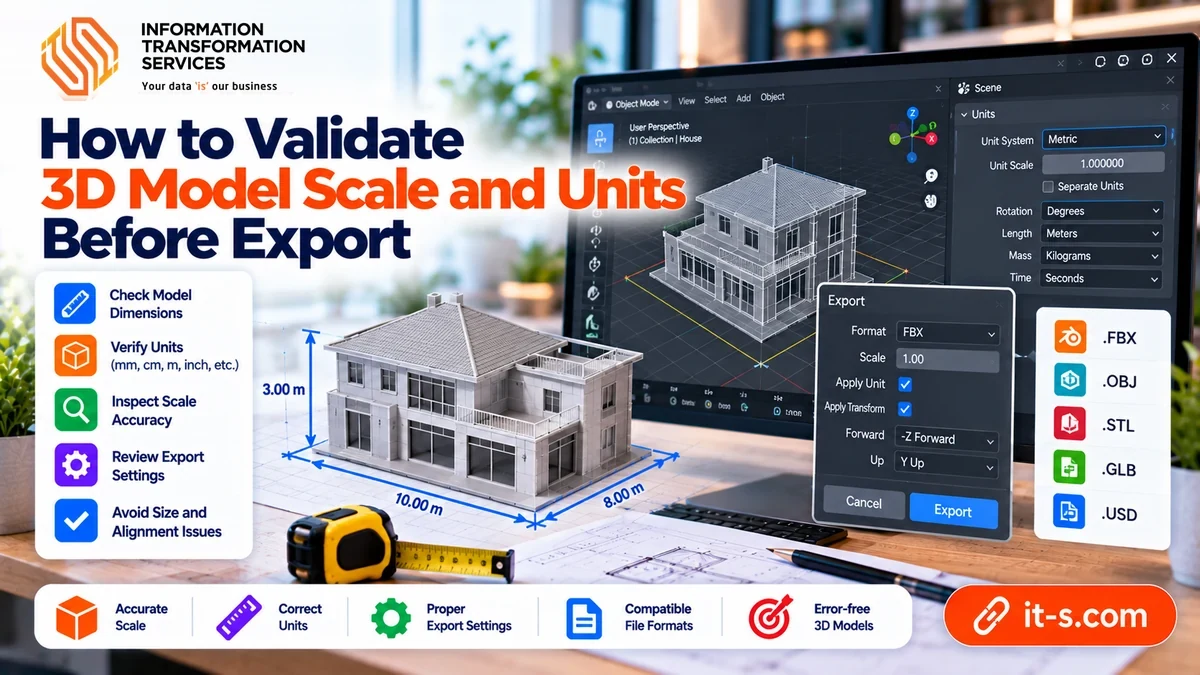
Before delivery, confirm the scene unit, measure one known dimension, inspect object and parent scale, verify the exporter unit setting, and import the result into the destination. If the file is intended for printing, AR, or engineering coordination, confirm the physical size again in that specific tool.
Record the expected dimensions in the delivery notes so the recipient can perform the same check. A few seconds of measurement can prevent hours of troubleshooting later.
Conclusion
3D scale errors happen when source units, object transforms, export conventions, and destination assumptions do not agree. The model can look correct visually while still being physically wrong, which is why real dimensions must be validated explicitly.
The safest workflow is simple: establish real-world size early, keep transforms controlled, understand the export format, measure before and after transfer, and document the intended units. When scale is treated as production data rather than a visual preference, 3D assets move between modeling, rendering, games, AR, CAD, and manufacturing with far fewer surprises.