

How to Export Blender Models to GLB Without Missing Textures
Exporting a model from Blender to GLB should create a portable asset with its geometry, materials, and texture images together. Yet a model that looks polished in Blender can appear gray, glossy, or incomplete in a web viewer. Missing labels, flat surfaces, and incorrect normal details usually indicate a material translation problem rather than a completely broken file.
The practical solution is to prepare materials for the glTF format, not simply to retry the export. This guide explains how to check image paths, shader nodes, UV maps, color spaces, transparency, and viewer compatibility before delivering a textured GLB.
Why GLB Materials Can Look Different
GLB packages geometry, scene information, supported material definitions, and images into one binary file. It is convenient for web viewers and interactive product displays, but it cannot preserve every effect in Blender’s flexible shader graph.
The exporter recognizes particular node arrangements and converts them into glTF materials. Procedural effects, complex shader mixing, and render-engine-specific features may not translate. A model that looks excellent in Blender can therefore appear flat or incomplete elsewhere.
Start With a Clean Material Setup
Open Blender’s Shading workspace and inspect the object’s material slots. A Principled BSDF connected to Material Output is a dependable starting point for physically based materials. Confirm that each visible mesh part uses the intended material.
Imported assets sometimes contain duplicate materials or empty slots. Check these before changing export settings. If only one component loses its texture, the problem may be local to that component rather than the GLB file itself.
Connect the Base Color Texture Correctly
Use an Image Texture node connected to the Principled BSDF Base Color input. Verify that the node contains the correct image and that the material is assigned to the mesh. This standard connection is readily understood by the exporter.
If a color depends on procedural noise, elaborate mixing, or an unsupported shader, bake the final appearance into an image. That creates portable pixel data instead of asking the destination viewer to reproduce Blender’s internal calculations.
Check Every Image Source Before Export
A texture can appear in Blender even when its original file has moved, because the application may still hold a cached image. Review file paths, unsaved images, and missing resources. Reopen the project when necessary to confirm they load reliably.
Packing images into the .blend file helps preserve the editable project, but the real deliverable is the exported GLB. Test that binary separately rather than assuming source-file packing guarantees correct material export.
Verify UV Maps and Image Placement
Image textures usually need valid UV coordinates. Open UV Editing and inspect the islands against the relevant image. A correctly connected texture can still appear distorted, repeated, or misplaced if the mesh has the wrong UV map.
Overlapping islands may be intentional for repeated materials, but they can damage unique labels or baked wear. When a material relies on Generated or Object coordinates, consider baking it onto an explicit UV layout for predictable delivery.
Set Color and Data Textures Differently
Base-color and emissive images contain visible color. Metallic, roughness, and normal maps contain data that should not receive ordinary color interpretation. In Blender, use Non-Color for these data maps to preserve the values they encode.
A roughness image interpreted as display color may change the surface response. Review each Image Texture node independently. Correct color-space settings are especially important when comparing the same product under different viewers and lighting environments.
Prepare Normal Maps With Standard Nodes
Connect a tangent-space normal texture to a Normal Map node, then connect that node to the Principled BSDF Normal input. Set the image to Non-Color. This conventional arrangement helps the exporter identify the map and its strength.
Procedural bump effects may need baking before delivery. Inspect the exported surface under moving light, because incorrect normal orientation or missing detail is easier to notice when highlights travel across the object.
Check Metallic and Roughness Channels
Core glTF uses a metallic-roughness workflow. In a packed texture, roughness belongs in the green channel and metallic data in the blue channel. The Blender exporter can adapt some arrangements, but conventional connections make debugging easier.
If the model appears unusually shiny, inspect the roughness connection and data color space before assuming the image is missing. Remember that a different environment map can change reflections even when the material values match.
Bake Unsupported Procedural Effects
Procedural wood, scratches, dirt, and complex masks are useful during design but may not survive translation into glTF. Bake the required appearance into images using the final UV map, then connect those images to a simplified export material.
Preserve the original procedural setup in the editable project. This separates creative source materials from portable delivery materials. Test the baked result at the expected viewing distance, especially where fine labels or subtle surface patterns matter.
Handle Alpha and Transparency Carefully
Transparent labels, foliage, cutouts, and glass require explicit testing. A PNG with an alpha channel does not guarantee that the destination will use the intended transparency behavior. Inspect the shader’s alpha connection and relevant material export controls.
Test against both dark and light backgrounds. Hard cutouts, blended surfaces, and transmissive glass behave differently, and advanced glass features may rely on glTF extensions that some viewers do not support.
Understand UDIM and Multiple Texture Sets
Some high-resolution assets use UDIM tiles rather than one ordinary texture image. Blender supports sophisticated tiled workflows, while glTF viewers may require those tiles to be converted or handled differently. Check your Blender exporter version and the destination’s material support.
For an uncomplicated product viewer, a conventional UV atlas may be easier to deliver. If conversion is required, verify that every tile is represented and that seams remain acceptable. Never assume a successful export means every high-resolution tile survived unchanged.
Use Clear Texture Names and Versions
Name image assets by model and function, such as chair_basecolor, chair_normal, and chair_roughness. Consistent names make it easier to spot an outdated image or a roughness map accidentally connected to a color input. Avoid relying on generic names like Image.001.
Keep approved textures in a predictable project folder and remove unused alternatives from the final material. This also simplifies handoff when a client requests new fabric colors or an updated product label without changing the entire 3D asset.
Select GLB Rather Than Separate glTF Files
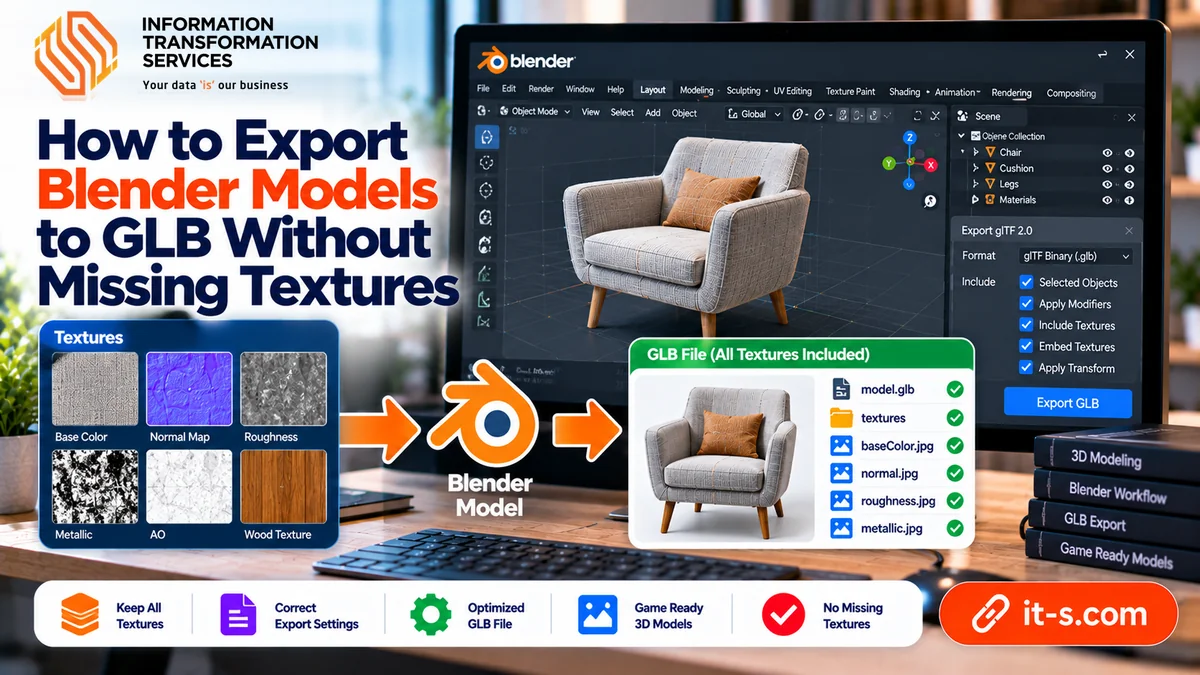
Choose File, Export, glTF 2.0, then select glTF Binary (.glb). Check that the intended objects and materials are included. When exporting selected objects, verify the selection includes every required mesh and associated component.
The separate .gltf format can reference external images and binary buffers. Moving only its JSON file can break those dependencies. GLB normally packages supported textures with the model, simplifying upload and handoff.
Review Image and Material Export Settings
Blender’s exporter interface changes between versions, so inspect the available material and image options instead of copying an old preset blindly. Make sure texture export is enabled and choose image formats the target platform can decode.
PNG and JPEG are useful compatibility baselines. WebP and other optional formats or compression methods may require extension support. Establish a correct ordinary export first, then experiment with optimization once the appearance is verified.
Import the GLB Into a Fresh Scene
Create a new Blender file and import the exported GLB. Inspect the object in Material Preview. Check printed labels, base color, roughness, normal detail, metallic response, and transparency. The original scene may conceal problems through cached resources.
A clean round-trip is a strong diagnostic step, but it is not the final test. Blender may support material features that another viewer interprets differently, so the receiving platform must also be checked.
Test the Actual Web or AR Destination
Open the file in the intended product viewer, game engine, or AR platform. Rotate it and compare distinctive features under several lighting directions. Look for missing maps, incorrect opacity, strange highlights, and UV seams.
Test relevant mobile devices when possible. Lighting, tone mapping, and supported extensions can vary across platforms. The cross-device 3D testing guide provides a complementary approach to compatibility checks.
Diagnose Missing Textures in Order
When a surface appears gray, check material assignment first. Then verify the Image Texture node, file availability, UV coordinates, and export options. If the image appears but looks wrong, examine color space, packed channels, normal-map wiring, and alpha behavior.
Change one setting at a time. A small cube carrying the problematic material is a useful test asset because it isolates the shader from complicated geometry. Avoid repeatedly exporting a huge scene without identifying the likely cause.
Optimize and Document the Final Asset
Only after visual checks pass should you reduce texture resolution, remove unused maps, or apply compression. The GLB file-size guide covers performance, while 3D product modeling explains the broader asset-production context.
Record the Blender version, export format, target viewer, and any required extensions. Keep a screenshot of the approved result. A repeatable checklist prevents future revisions from reintroducing the same missing-texture problem.
Conclusion
Successful GLB export depends on recognized material connections, valid image sources, deliberate UV maps, and correct data-texture settings. Bake effects that cannot travel as ordinary shader nodes, then verify the binary in a clean scene and in the destination viewer. The goal is not merely to create a file, but to preserve a predictable visual result.
For detailed technical reference, consult the Blender glTF exporter manual and the Khronos material extensions overview. Those specifications explain why some Blender effects transfer directly while others require baking or compatible extensions.